Your video call freezes mid-sentence, a webpage hangs for ten seconds, or a movie drops to blurry standard definition right in the middle of a scene. The immediate instinct for most people is to blame the internet service provider or run a quick speed test. Yet when you check the results, your plan looks fine on paper, or the numbers swing wildly from one minute to the next.
More often than not, the problem is not a broken connection outside your house. It is a single device inside your home quietly saturating your bandwidth. Between 4K streaming boxes, gaming consoles pulling down 80-gigabyte patches, cloud backup services, and always-on security cameras, modern households generate far more background traffic than most people realize. Pinpointing the exact culprit takes only a few minutes once you know where to look.
Why Finding Bandwidth Hogs Matters More Than Upgrading Your Plan
Paying for a faster internet tier rarely fixes a network slowdown if you do not understand what is causing the bottleneck. Most residential cable plans are asymmetrical, meaning your download speed might be 500 Mbps while your upload speed sits at a modest 20 Mbps.
That narrow upload pipe is surprisingly easy to clog. If one laptop starts syncing a folder of raw video files to the cloud, or two outdoor security cameras stream high-definition footage simultaneously, your upload channel hits 100 percent capacity. Because every internet request requires sending small acknowledgment packets back out, a maxed-out upload connection drags down download speeds and spikes latency for everyone else in the house. Upgrading from 500 Mbps to a gigabit plan often leaves that upload ceiling barely changed, which means the lag continues until you identify and manage the device responsible.
Check Your Router’s App or Admin Dashboard
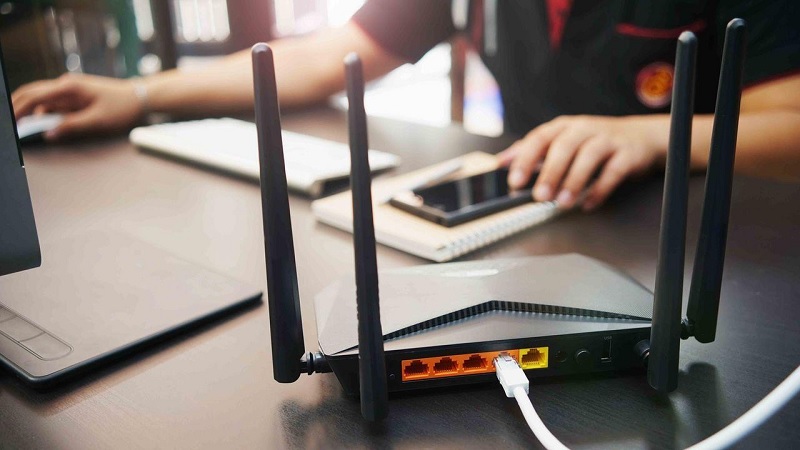
Your router is the single best place to start because every byte of traffic entering or leaving your home passes through it. Unlike individual computers or phones, the router has a complete view of the entire network, including smart TVs, game consoles, and smart home gadgets that do not offer built-in traffic monitors.
Using a Modern Router or Mesh Wi-Fi App
If you use a relatively recent router or a mesh system from brands like Eero, Google Nest Wifi, TP-Link Deco, Asus, or Netgear Orbi, you can check bandwidth usage straight from your phone. Open the companion app and look for a tab labeled Devices, Connected Devices, or Activity.
Most modern apps display real-time download and upload rates next to each connected item, along with daily or weekly data totals. Sort the list by current traffic while the slowdown is happening. A device pulling a steady stream of megabits per second when nobody is actively using it will stand out immediately. Keep in mind that some router brands lock historical usage charts behind a paid subscription, though real-time activity is almost always available for free.
Logging Into the Web Admin Interface
For standalone routers or gateways that do not rely on a mobile app, open a web browser on a computer connected to your Wi-Fi and enter your router’s IP address. On most home networks, this is 192.168.1.1, 192.168.0.1, or 10.0.0.1. You can usually find the exact address and default login credentials printed on a sticker on the bottom or back of the router.
Once logged in, look for sections titled Traffic Monitor, Bandwidth Monitor, Traffic Analyzer, or Device List. On some routers, real-time per-device tracking is disabled by default to save processing power, so you may need to toggle a switch to enable traffic statistics before data appears.
Decoding Cryptic Device Names
One frustrating hurdle inside router dashboards is figuring out what vague labels like “espressif,” “android-84f2,” or “Unknown Device” actually belong to. Modern iPhones, iPads, and Android phones also use private Wi-Fi addresses by default, which randomize their MAC addresses and can make the same phone show up under generic names.
If you spot an unfamiliar device chewing through data, look at the manufacturer prefix if your router lists it, or check the IP address against your own devices in their Wi-Fi settings. As a last resort, use the router’s Pause feature to temporarily cut internet access to that single device and see what stops working in your house. Once you identify it, rename it inside the router dashboard so you do not have to play detective again next month.
Inspect Individual Computers and Phones
Many internet providers supply basic modem-router combos that strip out advanced traffic monitoring altogether. If your gateway only shows a list of connected devices without telling you how much data they are using, the next best approach is to check the heavy hitters directly.
Windows 10 and Windows 11
Windows gives you both a live view and a 30-day history of network consumption. For live troubleshooting, press Ctrl + Shift + Esc to open Task Manager, click the Processes tab, and click the Network column header to sort applications from highest to lowest usage. This immediately reveals whether a background Windows update, a game launcher, or a cloud sync tool is saturating your link.
To see which apps have burned through the most data over time, open Settings, navigate to Network and internet, and select Data usage (or Advanced network settings followed by Data usage on Windows 11). This breakdown is especially useful if you have a monthly ISP data cap and want to know why you are approaching your limit.
macOS
On a Mac, open Activity Monitor from the Applications/Utilities folder or via Spotlight search, then click the Network tab at the top. Look at the Sent Bytes and Rcvd Bytes columns, and watch the live data-per-second graph at the bottom of the window. Clicking a column header sorts processes by total volume, making it easy to spot a runaway iCloud Drive upload, a stuck Photos sync, or a browser tab streaming video in the background.
Smartphones and Tablets
Phones rarely bottleneck a broadband connection on their own, but automatic photo backups and operating system updates can cause noticeable spikes on slower upload links. On Android, open Settings, go to Network and internet (or Connections), and check Wi-Fi data usage to see a per-app breakdown. On an iPhone or iPad, Apple does not provide a native Wi-Fi data tracker per app, so the quickest check is to look at whether iCloud Backup or iCloud Photos is actively syncing while the device is plugged in and locked.
Use Dedicated Network Monitoring Software
If you want deeper insight into what a specific computer is sending and receiving, lightweight desktop monitoring tools fill the gap nicely. Programs like GlassWire and NetLimiter display clean visual graphs of network traffic over time, breaking down usage by individual application and even alerting you when a new program accesses the internet for the first time.
For scanning your broader home network when your router interface is barebones, mobile apps like Fing can quickly list every device connected to your Wi-Fi along with its manufacturer and device type. Just keep expectations realistic about what software on a laptop or phone can see. Because modern routers switch traffic directly between devices without broadcasting it across the whole network, an app running on your phone cannot measure how much bandwidth your living room TV is using unless it pulls that data from the router itself.
The Usual Suspects Behind Sudden Network Slowdowns
Once you start monitoring traffic, you will notice that the same handful of culprits cause the majority of home network congestion.
Cloud backup and sync services are the number-one cause of sluggish video calls and laggy web browsing. Services like OneDrive, Google Drive, iCloud, Dropbox, and Backblaze often default to using as much upload bandwidth as they can grab. Dropping a large folder of photos or videos into a synced directory can quietly choke your upload speed for hours.
Gaming consoles and PC launchers are another frequent offender. PlayStation, Xbox, and Steam routinely push multi-gigabyte updates, and many consoles are configured to download patches automatically in rest mode. A single 60-gigabyte update running at full speed will consume virtually every megabit of download capacity on a mid-tier internet plan.
Smart security cameras and video doorbells create constant background pressure. A single 1080p camera might only use 1 to 2 Mbps, which sounds harmless, but four or five cameras recording continuously to the cloud in 2K or 4K can easily eat up half of a standard cable upload allowance.
Unrecognized or compromised devices are less common, yet worth ruling out. If you see sustained traffic late at night from a device nobody in your household recognizes, it could be a neighbor who guessed a weak Wi-Fi password or an infected computer quietly participating in unwanted background activity.
What to Do Once You Find the Culprit
Finding the bandwidth hog is half the battle; taming it without ruining everyone’s experience is the rest. In most cases, you do not need to kick the device off the network.
Start by checking whether your router supports Quality of Service (QoS) or Smart Queue Management (SQM). QoS lets you assign priority to latency-sensitive traffic like Zoom calls, voice chats, and online gaming so they stay smooth even when another device is downloading a massive file. SQM goes a step further by automatically balancing traffic across every device on the network, eliminating bufferbloat without requiring you to manually rank applications.
Next, adjust the settings inside the offending apps. Steam, Xbox, OneDrive, and most backup clients let you set a bandwidth speed limit or schedule heavy transfers for overnight hours when nobody is working or streaming. Capping a cloud backup tool at 50 percent of your upload speed keeps your network responsive while still getting your files backed up.
Finally, plug stationary high-bandwidth devices directly into your router with an Ethernet cable whenever possible. Moving a desktop PC, gaming console, or streaming box off Wi-Fi does not increase your total ISP speed, but it frees up valuable wireless airtime so laptops and phones experience far less interference and jitter. And if your investigation uncovers an uninvited guest on your network, block the device immediately, switch your Wi-Fi security to WPA2 or WPA3, and set a strong new password.
Making a quick check of your router dashboard a habit whenever your connection feels sluggish takes the guesswork out of home networking. Instead of rebooting your modem in frustration or paying for a pricier internet tier you do not actually need, you can spot the exact bottleneck in minutes and keep every device in your home running smoothly.